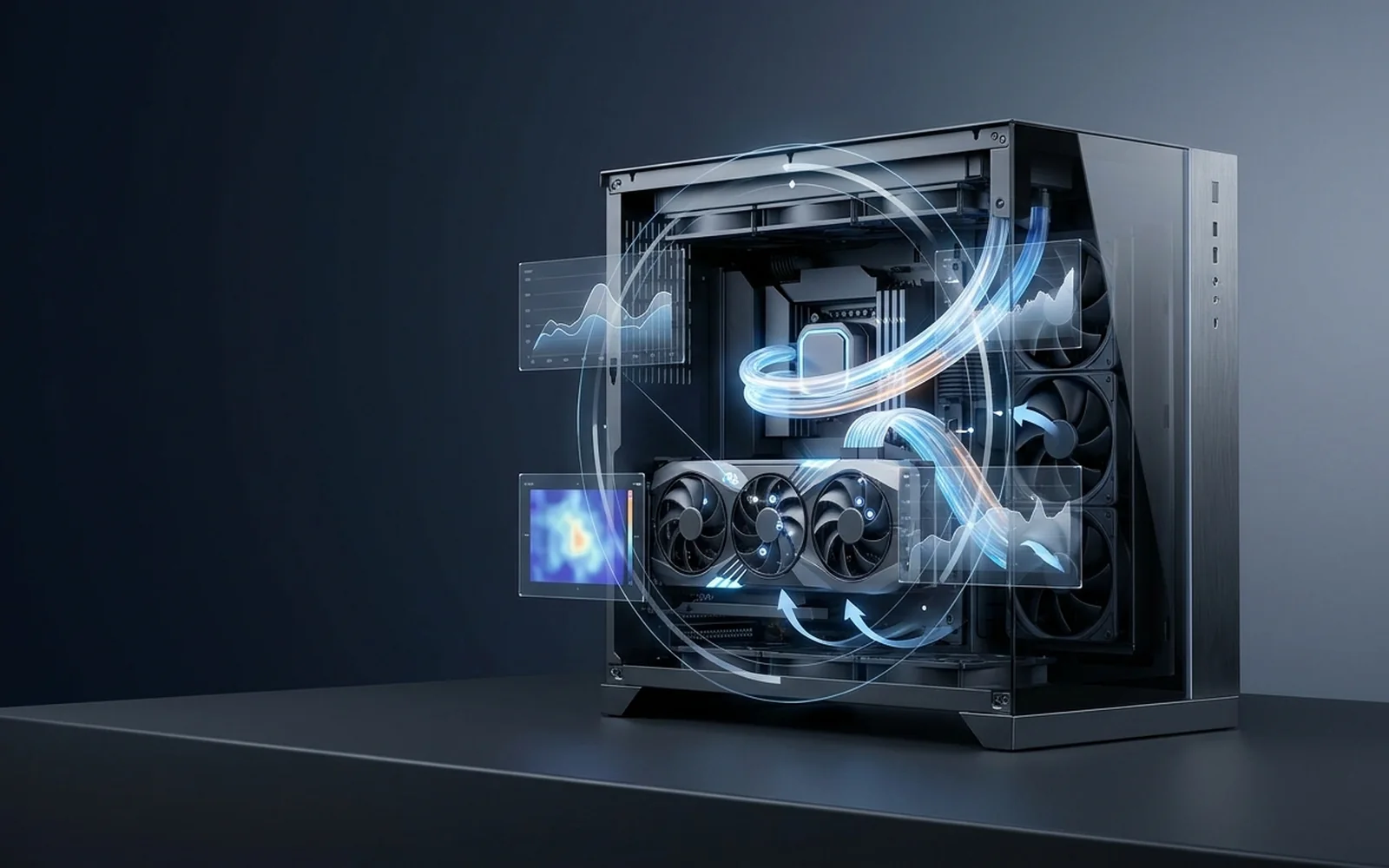
Start with the right question
How to use a PC bottleneck calculator
Use the exact parts in your PC, model the resolution and frame target you really use, read the limiting direction, then verify that prediction in the same game or application.
Identify the exact CPU and GPU
In Windows, open Task Manager and choose the Performance tab. Use the full processor and graphics-card names. On a laptop, select the discrete GPU used by the game, not only the integrated graphics entry.
Check a gaming laptop correctly →
Match your real scenario
Choose the display resolution, intended frame rate and workload you actually run. A 1080p competitive target and a 4K quality target can produce opposite limits from the same hardware.
See how resolution changes the limit →
Read direction before percentage
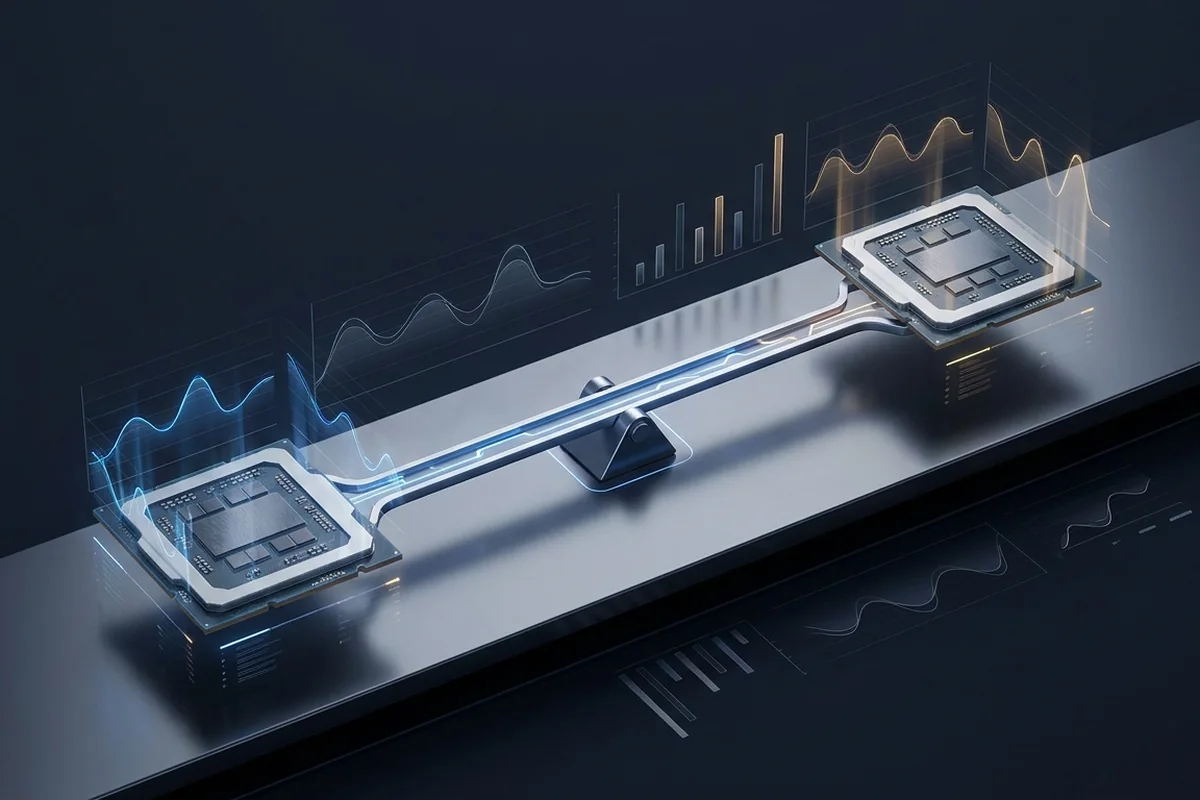
Start with CPU-limited, GPU-limited or balanced. The percentage describes a relative tier gap inside this model. It is not the percentage of FPS lost and it is not a hardware-health score.
Interpret the bottleneck percentage →
Confirm before spending
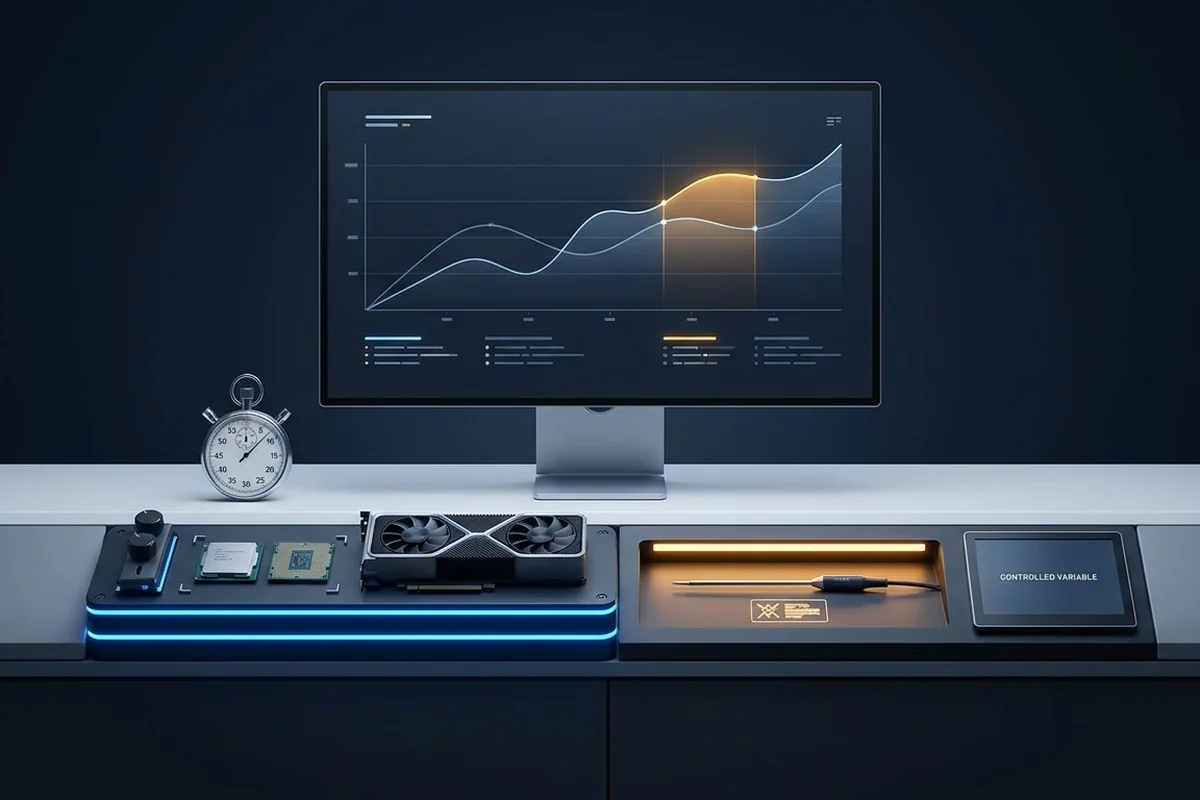
Repeat one scene, record frame time and utilization, then change one variable. A prediction becomes useful only when the measured response points to the same limiting stage.
Use the PC bottleneck checklist →
What this result can answer
- Which side is more likely to run out of headroom first.
- How the direction changes at 1080p, 1440p and 4K.
- Which measurement should come next before an upgrade.
What still needs a real-world check
- Exact FPS, 1% lows and behavior in a particular game scene.
- Motherboard socket, BIOS, power supply, cooler and case fit.
- Heat, background software, RAM pressure, storage stalls and driver issues.
A balance estimate is not a physical compatibility checker. Use the published calculation and limitations to inspect the model, then build a measured CPU-or-GPU upgrade decision.
Transparent calculation
What the bottleneck calculator actually measures
The result compares normalized CPU and GPU tier indices after applying the selected resolution, frame target and workload factors. The percentage is the rounded distance between the two adjusted headroom values. It identifies the lower side as the first path to investigate; it does not claim that the same percentage of FPS is lost.
| Input | Why it changes the balance |
|---|
| Resolution | Changes the graphics work performed for each rendered frame. |
| Frame target | Changes the time available for CPU frame preparation. |
| Workload | Adds different compute, encoding and memory pressure. |
Every result links to a validation checklist. The complete formula, current coefficients, worked example, limitations and revision history are published in the bottleneck calculator methodology. For focused frame-time and resolution calculations, browse the PC performance calculator collection.
Reproducible example
Worked example: one pairing, three different conclusions
Direct answer: AMD Ryzen 7 9800X3D and NVIDIA GeForce RTX 5090 move from a CPU limit at 1080p to a balanced result at 1440p and a GPU limit at 4K in this 120 FPS gaming scenario. Resolution changes the work per frame, so one universal percentage would hide the useful part of the answer.
Resolution comparison for AMD Ryzen 7 9800X3D and NVIDIA GeForce RTX 5090
| Resolution | Model result | Relative tier gap | Best next check |
|---|
| 1920 × 1080 (Full HD) | CPU-limited | 16% | Busiest CPU-thread time and unused GPU capacity |
| 2560 × 1440 (QHD) | Well balanced | 5% | 1% lows, temperatures and repeatability |
| 3840 × 2160 (4K UHD) | GPU-limited | 30% | GPU frame time after one quality or resolution change |
The gap is a comparison of adjusted headroom, not a promise that the system loses the same percentage of frames. Open the full three-resolution pairing analysis, reproduce the scenario in the calculator, and use the linked checks to test the prediction.