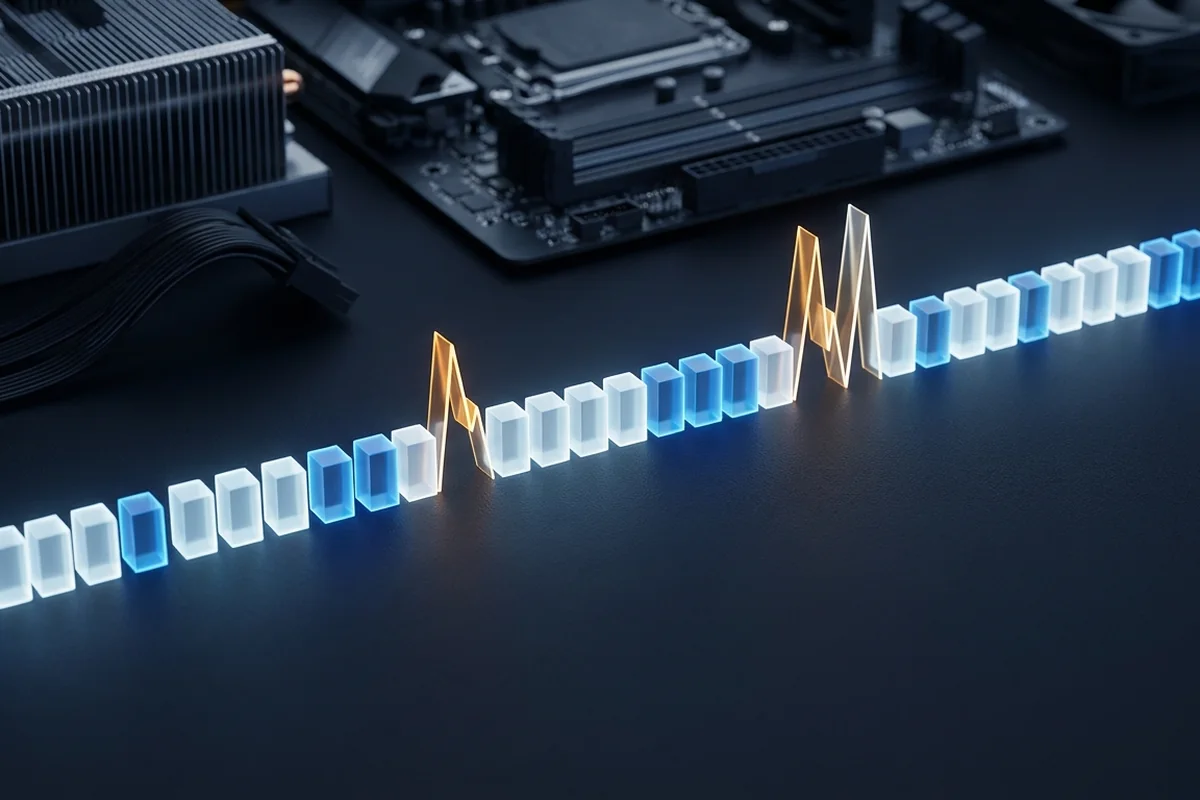
Each frame has a delivery time. A 60 FPS average implies 16.7 milliseconds per frame, but the experience can still stutter if a small group of frames takes far longer. Percentile lows summarize that tail more clearly than the average.
Learn how frame time and 1% lows reveal stutter that average FPS hides, then use repeatable captures to separate limits from one-off spikes.
Do not accept the hypothesis until the same scene responds to one controlled change.Competing explanations to clear first
Start by separating this symptom from other limits that create a similar graph, utilization reading or user experience.
- A short capture can make percentile values unstable.
- Loading screens and menus can contaminate an otherwise repeatable sample.
- Frame-generation display rate and application-present rate are different metrics.
A repeatable test for frame-time and 1% low problems
Test frame-time and 1% low problems with the following controlled sequence and record the response after each change.
Controlled checks for frame-time and 1% low problems
- Graph frame times and inspect spike frequency and magnitude.
- Repeat a route after shader caches are warm.
- Change one subsystem-sensitive setting at a time.
- Compare capped and uncapped runs.
Use the response to identify the cause
Read across one row at a time: observation, controlled change and interpretation belong to the same test.
| Target FPS | Frame budget | One-millisecond share |
|---|---|---|
| 60 FPS | 16.67 ms | 6% |
| 120 FPS | 8.33 ms | 12% |
| 240 FPS | 4.17 ms | 24% |
What to record before testing frame-time and 1% low problems
Learn how frame time and 1% lows reveal stutter that average FPS hides, then use repeatable captures to separate limits from one-off spikes.
Signals that support frame-time and 1% low problems
- Frame time is the inverse of frame rate, so spikes are visually important.
- 1% lows should be compared in the same scene and test length.
- Shader compilation, storage, CPU scheduling and VRAM can all create spikes.
- A stable cap can feel better than an oscillating higher average.
Diagnostic walk-through for frame-time and 1% low problems
Two presets both average 100 FPS. The first holds most frames near 10 ms; the second alternates between 6 ms and 18 ms. Their averages match, but the second feels less consistent and produces weaker percentile lows. The frame-time trace reveals the difference immediately. Capturing the same sixty-second route three times shows whether those spikes repeat or were an isolated loading event.
How to interpret evidence about frame-time and 1% low problems
For frame-time and 1% low problems, apply the lowest-risk relevant change first and repeat the original measurement before moving on.
Low-risk actions for frame-time and 1% low problems
- Use an FPS cap the system can sustain consistently.
- Reduce CPU-heavy crowd, simulation or draw-distance settings for CPU spikes.
- Reduce textures if VRAM pressure is present.
- Treat one-off loading transitions separately from continuous gameplay.
Questions that arise during diagnosis
Is a higher average always better?
No. A slightly lower but more consistent frame rate can feel smoother.
What is a good 1% low?
There is no universal number; it should be close enough to your target that dips are not disruptive.
Do monitors cause stutter?
Heavy logging or multiple overlays can, so validate with a minimal setup.
Technical sources and further reading
The references below support the specific measurement method or technology discussed for frame-time and 1% low problems. Check the documented software version and system configuration before transferring a result to another PC.
